TimeOpera - Teams Setup Guide
Follow these simple steps to add TimeOpera to Microsoft Teams. Once installed and the required configuration steps are completed, the application will be available to all users in the organization, allowing them to access it directly from Teams without needing to navigate to the SharePoint site.
1. Open Teams App Setup Policies
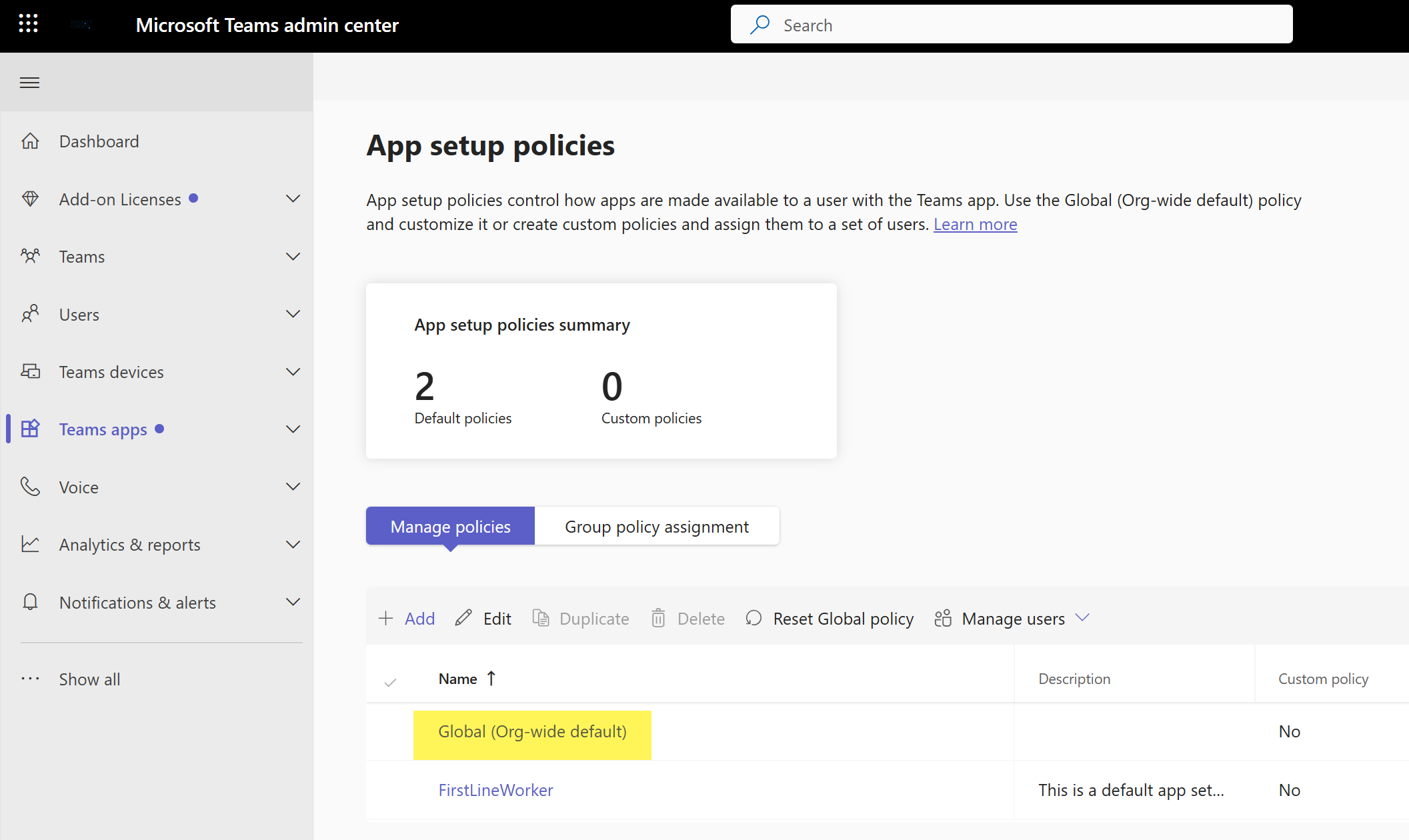
Open the Microsoft Teams admin center and go to the app setup policy area so you can configure the default Teams experience for your organization.
- Open https://admin.teams.microsoft.com/policies/app-setup
- Select Global (Org-wide default)
- Use this policy when you want TimeOpera available for users by default across the organization
2. Add TimeOpera to Installed Apps and Pinned Apps
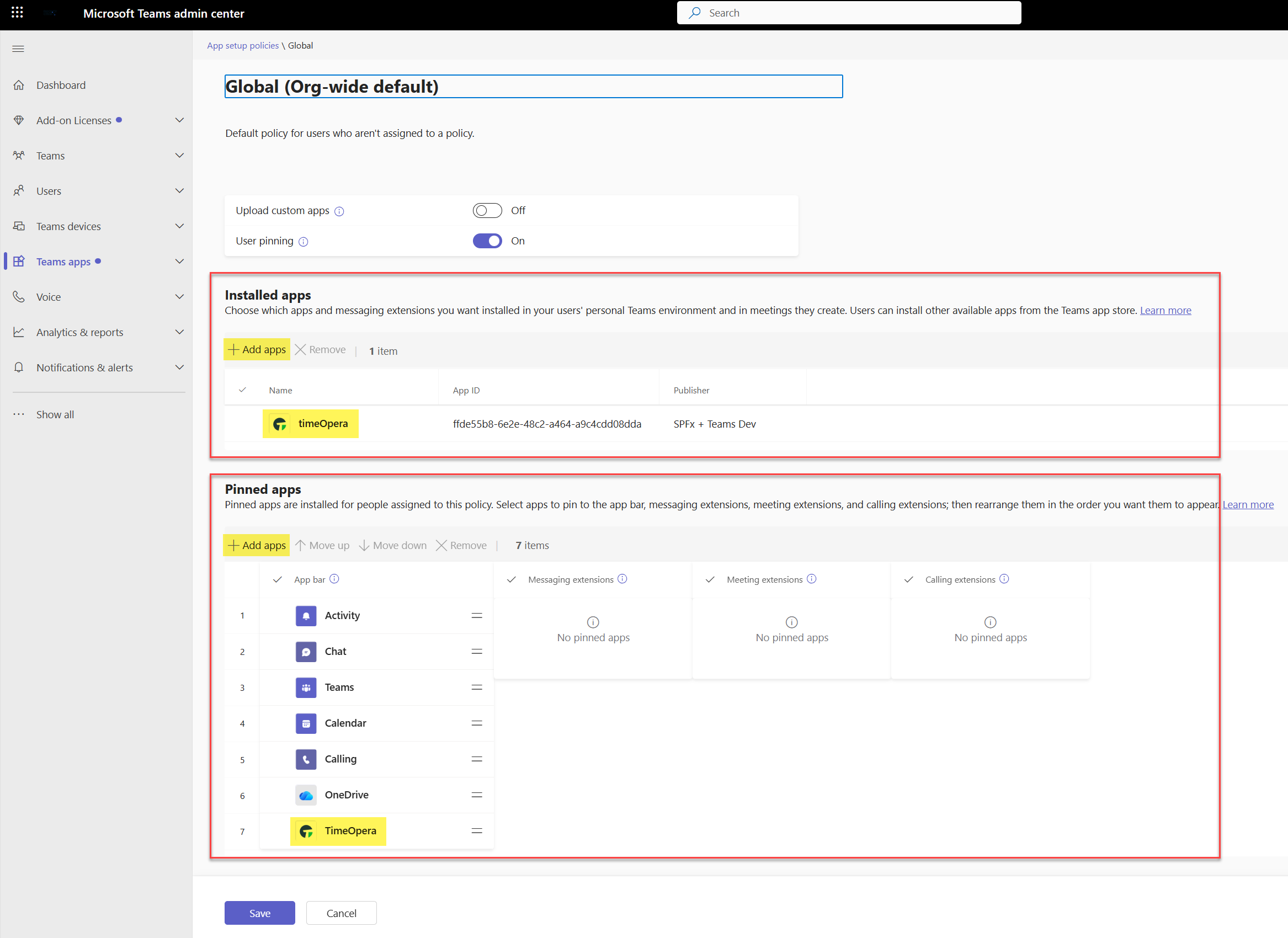
In the selected policy, add TimeOpera in both places so the app is available and easy for users to find directly from the Teams navigation.
- Add TimeOpera under Installed apps
- Add TimeOpera under Pinned apps
- Adjust the order in Pinned apps if you want the icon to appear higher in the Teams app rail
- Click Save after making the changes
3. Open TimeOpera in Manage Apps
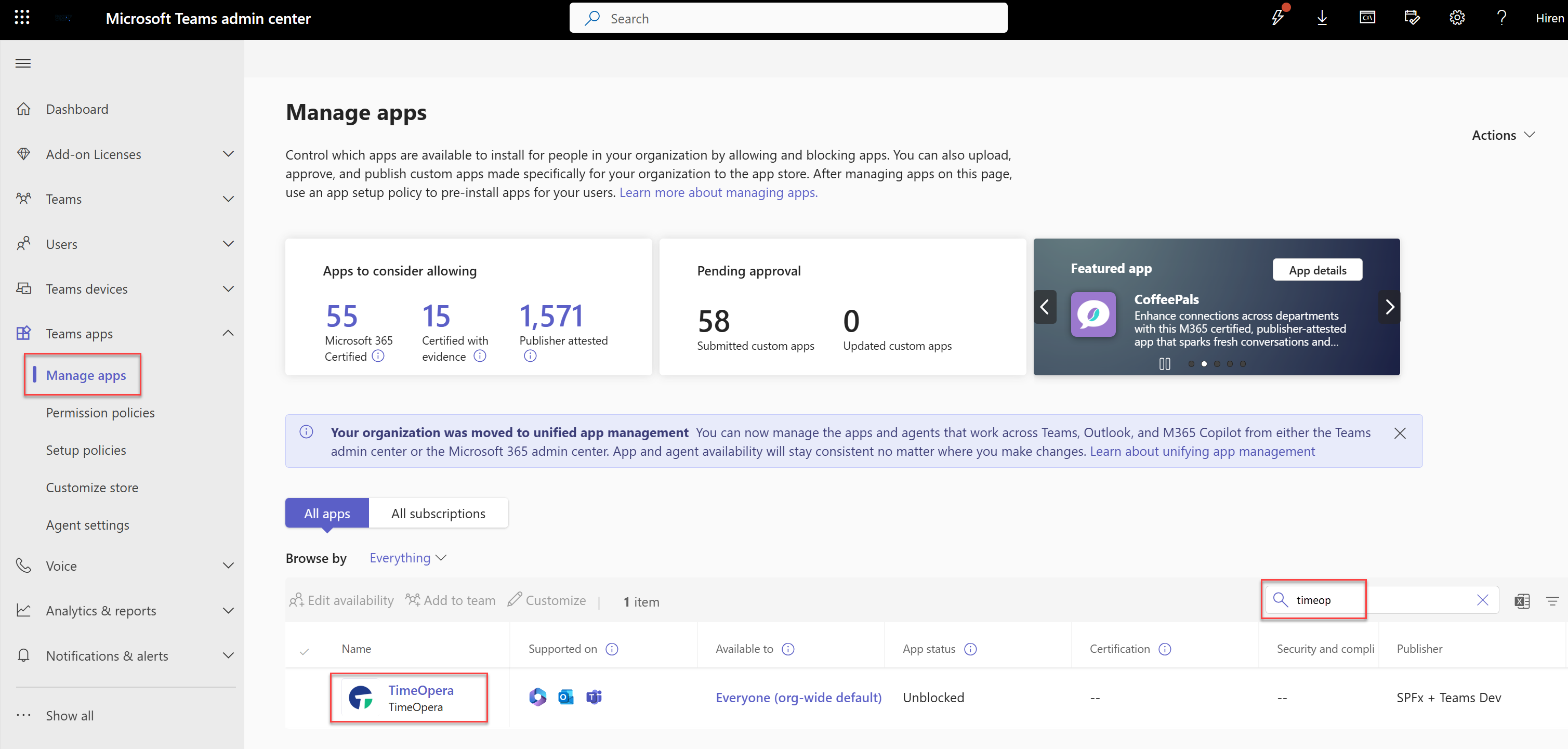
Next, go to the Teams app catalog area so you can open the TimeOpera app details and retrieve the app ID used for setup inside TimeOpera.
- Navigate to Manage apps in the Teams admin center
- Search for TimeOpera
- Click the TimeOpera app name to open its details
4. Copy the App ID from App Details
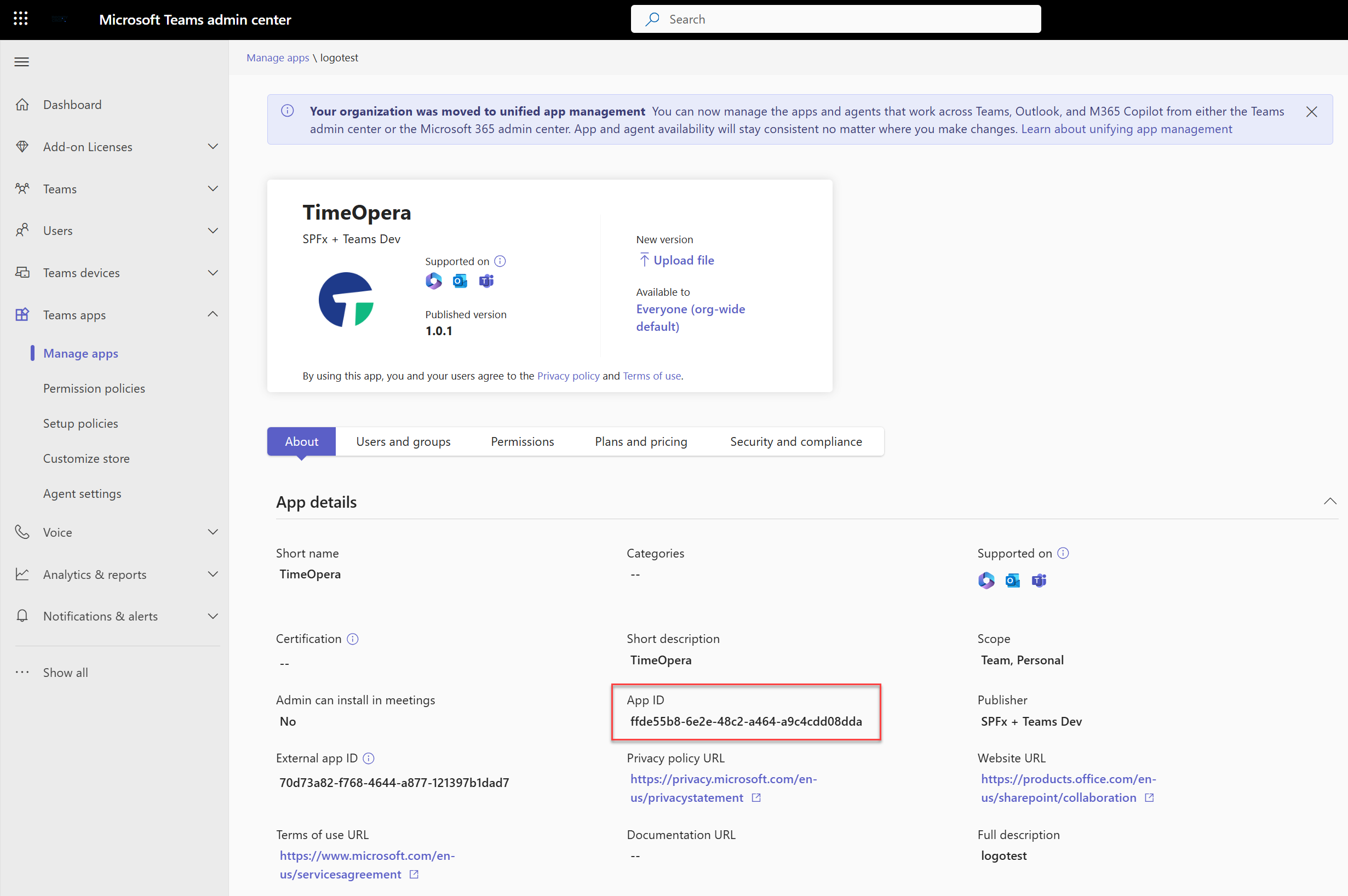
Inside the TimeOpera app details, locate the Teams App ID. This value is required in the TimeOpera Admin setup screen.
- Look for the App ID field in the app details page
- Copy the full ID carefully
- Keep this value ready for the final setup step inside TimeOpera
5. Save the Teams App ID in TimeOpera
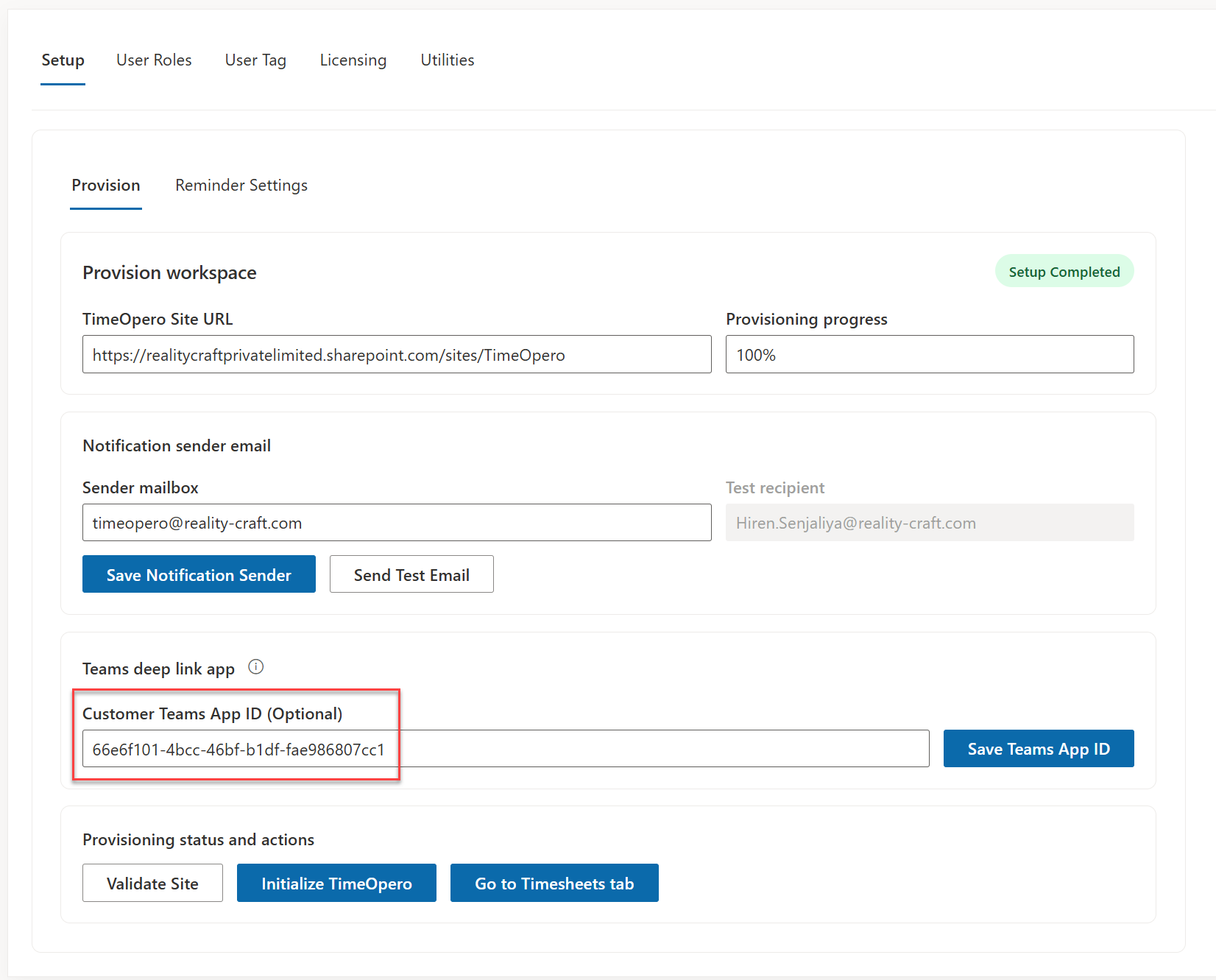
Open the TimeOpera app, go to the Admin area, and complete the final Teams connection by saving the app ID you copied from the Teams admin center.
- Open the TimeOpera app
- Go to the Admin tab
- Inside App Setup, find the Customer Teams App ID field
- Paste the copied app ID
- Click Save to complete the Teams setup
Support
If the Teams setup does not complete, review the policy changes, confirm the copied app ID, and save the value again inside TimeOpera Admin.