Microsoft Teams App Setup Guide
TimeOpera can be deployed as an organization-managed Microsoft Teams app for desktop, web, and mobile access. Follow this guide to set it up centrally.
- Microsoft Teams Administrator role access in the target Microsoft 365 tenant.
- The compiled TimeOpera Teams manifest package (.zip file) received during onboarding.
- A designated SharePoint site initialized for TimeOpera storage.
Configure App Setup Policy & Pinning
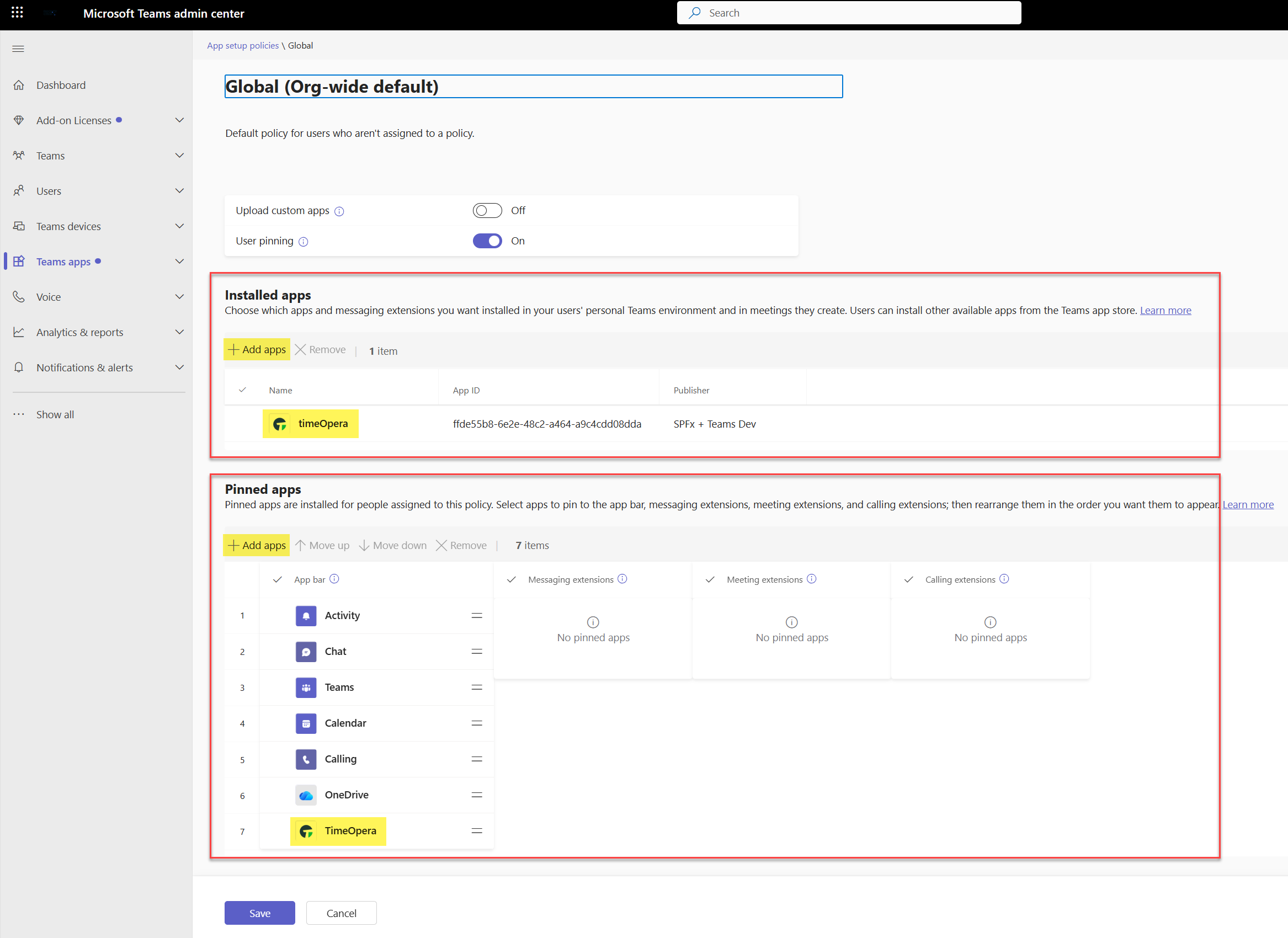
Configure Teams app setup policies to install TimeOpera automatically and pin it in the sidebar for desktop and mobile users.
- Go to Teams apps > Setup policies (or use the quick link above).
- Select Global (Org-wide default) policy.
- Under Installed apps, click Add apps and search for TimeOpera.
- Under Pinned apps, click Add apps, select TimeOpera, and adjust the order to pin it higher on the Teams sidebar rail.
- Click Save.
Retrieve App ID & Connect inside TimeOpera
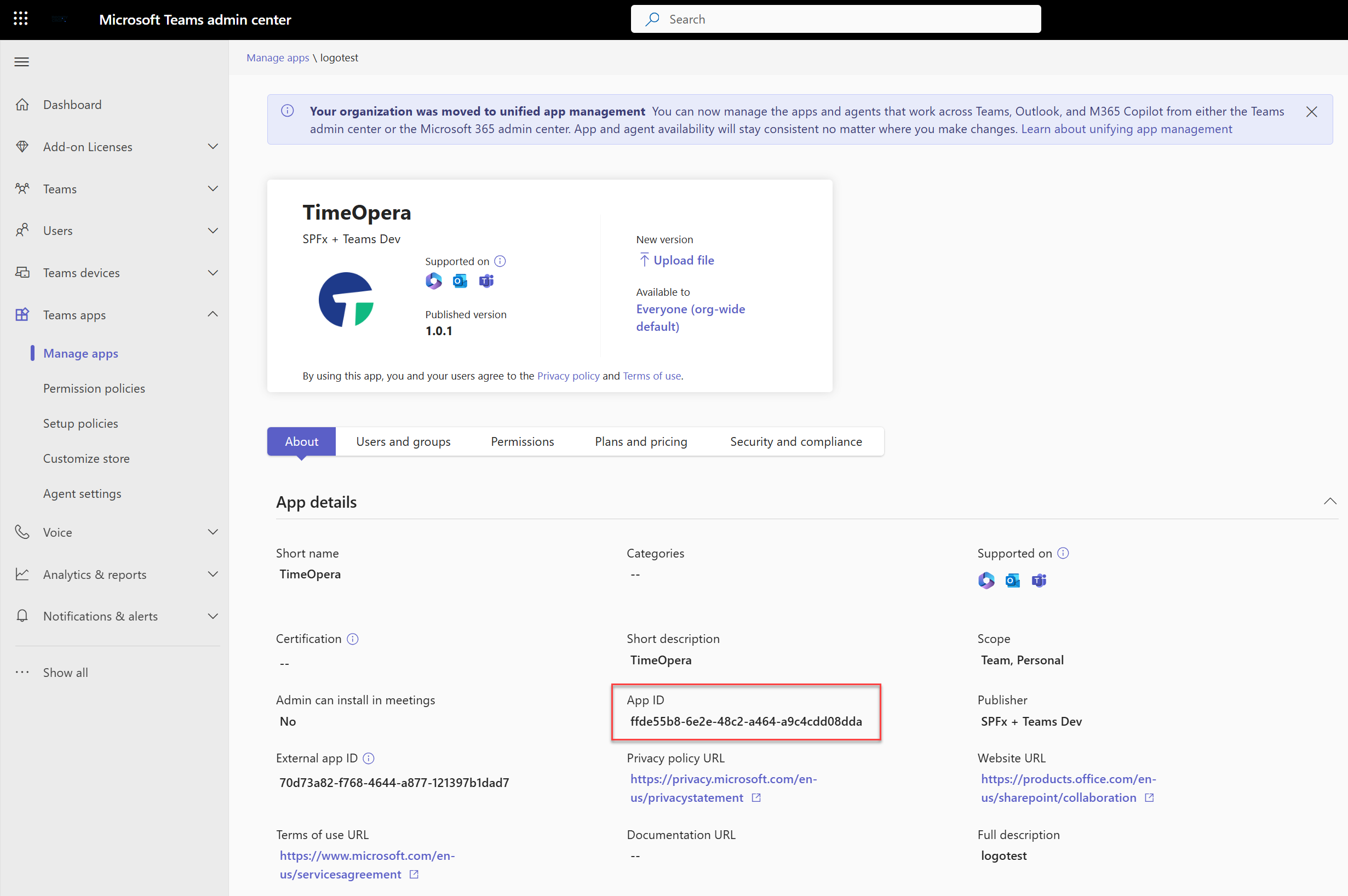
Open the app details in the Teams admin catalog to find and copy the unique App ID, then save it in TimeOpera Admin settings.
- In Manage apps, search for TimeOpera and click on its name to open details.
- Copy the value in the App ID field.
- Open the TimeOpera app, navigate to the Admin dashboard tab, and paste this ID into the Customer Teams App ID field, then save.
Validation & Troubleshooting
Validation
- Desktop: Verify TimeOpera icon appears in the left Teams app rail.
- Web: Open Teams in browser to confirm the app resolves correctly.
- Mobile: Open the Teams Mobile app on iOS or Android, go to the "More" (...) section, and verify TimeOpera is available.
Policy Propagation Note
Note: App setup policies and pinned apps take time to distribute. In Microsoft 365 environments, changes can take between 2 to 24 hours to propagate to all users' Teams apps on all devices.
Troubleshooting
If the app fails to appear, confirm the app status is set to "Allowed" in Manage Apps. Check that the user is covered by the specific Setup Policy. Re-validate that the App ID is pasted exactly as retrieved from Teams Admin catalog.